Freebsd Laptop Support

  • Subscribe to our RSS feed.
  • Twitter
  • StumbleUpon
  • Reddit
  • Facebook
  • Digg

Wednesday, 8 May 2013

Practical Tech Stuff for the Expatriate

Posted on 13:51 by Unknown
Category: Tech Today

I bumped into an African-American from Tennessee in Taipei and the guy exclaimed out loud "How the hell did we ever travel around the world without a smartphone with its translator,GPS, and sh*t?" I quietly thought of MacGyver and Indiana Jones. Everyone knows that tech essentials include a dual-boot Windows/Linux system (ok, sure, Macbook too), a digital camera, smartphone, tablet, and MP3 player. But surprisingly, it's the small, cheap devices that count. 


When I moved to a different country for work, I wanted to follow the adage of traveling light and brought only my primary laptop and my netbook. I quickly found out that I could have easily brought a few more electronic devices that could have made my life easier:

1.Media player - My brother recently moved to Australia and he told me he decided to bring along the monstrous media server desktop he set up so he and his wife can watch all the movies and TV shows they downloaded in advance. Against my advice, he decided not to take apart the system but brought the whole rig in one piece (thankfully he didn't bring along his huge LED monitor).

Two girls I know attest that the most important aspect about moving to a different place is having your choice of entertainment handy. I don't quite agree but I began to understand after a year of media deprivation. If you're a thousand miles away from home, even the glitziest malls, noisiest bars, and tastiest food cannot replace the security of watching the latest episode of Game of Thrones or an old episode of Terminator: The Sarah Connor Chronicles or Chuck on a big screen or television, not on a 15" LCD screen on your laptop.

Having a cheap media player that streams and plays your videos to a screen in your rented apartment isn't a luxury - it becomes somewhat of a necessity when the exhaustion and isolation of living in a different country sets in. A tablet is great for watching videos but not everyone wants to convert, transcode, transfer, and maintain a WebDAV/Airplay connection to watch 15 minutes of Spider-Man (the awesome 1960s version) knocking out bad guys. Most media players are small enough to fit in a hand carry and have legacy composite ports for developing countries and HDMI if you end up renting a posh living space. The included web services and network features aren't always useful (especially if you're working in the Middle East or China), but just enjoying an episode of great TV or archived movies is priceless.


Homesick? Watch an episode of the 1967 Spidey series. You'll laugh your heart out and marvel at the stoic and good-natured Peter Parker (not the b.s. in today's Spidey comic books).

   
2.Wireless router - Android devices and smartphones are heavily dependent on wireless Internet. Obviously, the future will bring about the permanent death of cables (the Macbook Air infamously doesn't have an Ethernet port). An old-school friend of mine was dismayed when he realized he had no easy way of maintaining his Google Nexus without wireless Internet. Everyone should have a basic wireless router on hand when moving to a different country in case they need to set up their own wireless network. Of course, hotels and most flats now offer Wi-Fi as standard, but wouldn't you want to set it up your way?

3.Universal adapter - I can't emphasis how important this small block of plastic is. I brought 2 but ended up purchasing 2 more. There's a reason why travel books always have a section reserved for plugs native to a region or country.


4. Ethernet cables/HDMI cable - Most people cannot live without Internet. However, there are some who would prefer a wired connection over a poorly secured and unreliable wireless Internet service. Ethernet cables can be messy and infinitely annoying with its breakable plastic clips and ability to trip you even if you were equipped with danger-warning spider-sense. However, I find them indispensable. Plus, the observant itinerant will spot an RJ-45 port in the most curious places just when they need them the most. HDMI, on the other hand, is just awesome for travelers.

5. Backup laptop - As a person who doesn't use a cellphone, I'm beginning to understand why people are so attached to their smartphones and freak out when they lose their iPhones. Tablets, powerful as they are, can replace a notebook for some people (especially for non-power users who only use their laptops to access Facebook or play games). Professionals who do serious work with their machines however, need to bring along a backup system. The much reviled netbook is my personal choice. Installed with a well-maintained Linux distribution, a Linux-powered machine can help you get some serious work done if your main system suddenly crashes permanently, cracks in transit, falls off your backpack, or (perish forbid) gets stolen or gets lost.  


6. An ereader - Sometimes, you just need to disconnect from the Internet. It's just not healthy. Yes, the Nook, Kindle, and Kobo ereaders have Wi-Fi enabled but the black and white devices were equipped with them originally so you can purchase more books to read. The whole point of owning a one-trick pony like my Sony PRS-600 is so I can sit down and read a book without having any distractions, be it my next technical article, a Linux experiment, updated BBC podcasts, streaming K-Pop videos, and the latest gossip about Harrison Ford rejoining the Star Wars franchise.

7. Portable hard drive - A portable hard drive may sound boring but in many ways it's more important than an iPad or Samsung tablet. You can connect it to the aforementioned media player, backup your scanned travel documents and your whole Linux/Windows system, load your ripped Rick Astley MP3s to iTunes. Moreover, it provides easy access to that reservoir of photos from your past when you need to reminiscence about the simpler times before leaving your home country.

For business professionals, a scanner, rechargeable batteries, and a pico-projector are more important than a printer (unless you regularly work at home and print tons of documents or graphic designs). Surprisingly, one of the most useful items you can buy almost anywhere is a power strip with the right connectors. So the next time you decide to work overseas (and who wouldn't in this economy?), take the time out to carefully pick out your tech essentials. It will keep you productive and entertained well in the long run.
Read More
Posted in Tech Today | No comments

Tuesday, 7 May 2013

Imaging Software: Lenovo OneKey and Clonezilla

Posted on 05:43 by Unknown
Category: Techtoday

I recently had to do a clean install of my Lenovo Ideapad Z360 and after reinstalling Windows 7, Office 2010, and the prodigious updates that come along with it, I was ready to create a clean install image using Clonezilla, which has been my imaging software of choice for awhile now. In the end, I opted to use Lenovo OneKey Recovery system, the reason of which I will make clear in a bit.

Clonezilla 2.1.x

I've had a fairly dated version of the excellent Clonezilla on a small 256MB USB stick for the last couple of years. In that time, I've "cloned" openSUSE and dual-boot Windows-Ubuntu systems for workstations. I've never had issues with the Debian-based distribution and it's one of the more reliable tools I have in my Linux arsenal.

The clean install of my Windows 7 was a small 40GB in total (proudly free from pirated software). This time around, I decided not to create an image of a dual-boot system like I normally did since I've always found installing Linux distributions enjoyable. I booted into Clonezilla and went through the steps. I plugged in my Seagate 2TB external desktop hard drive and the system chugged along. Unfortunately, the imaging process crashed 65% of the way. Clonezilla actually provides a helpful note before the process indicating that if imaging fails midway through, it is more likely caused by the lack of storage space available. My Seagate drive had a healthy 1.75 TB of free space so storage space was not the cause.

Clonezilla has never failed me so I was undeterred by this speed bump. I booted into openSUSE, quickly downloaded the latest version of Clonezilla 2.1.x and used Unetbootin to create a bootable USB stick.


I was severely impressed with the changes to Clonezilla, specifically the friendly progress bar added to the imaging process. Unlike the older version of Clonezilla, Clonezilla 2.1.x now had a visual cue to inform users how far along the process is. Moreover, the colors were less harsh and the instructions less intimidating. Once again, I ran the process and selected options to accelerate the process - I skipped the option to check the image (which is only recommended for NTFS) and another option for advanced users.

Again, Clonezilla crashed at more than 60% of the way. I let it run for more than hour at the same progress point to make sure it wasn't just a chunk of data that needed extra time, but Clonezilla never resumed.

There could be only a few reasons why both versions of Clonezilla could fail. It was due to the Seagate 1TB drive, which was preformatted using NTFS on purchase. My other external hard drives, such as the 500GB Toshiba portable drive and the 1TB Buffalo were both formatted using FAT (as most storage drive manufacturers do). Clonezilla notes that support for NTFS is not fully complete which could be the reason for the failed partimage procedure.

Lenovo OneKey Recovery 7.0

Most people (including me), avoid using OEM "crapware" as much as possible. However, there are exceptions. Skype, for example, was preinstalled in many machines years before Microsoft purchased the company. Lenovo's OneKey Recovery software is included on Lenovo laptops and can be optionally reinstalled after a clean install using the Drivers CD. This is a fair policy on Lenovo's part and is good for the user - Lenovo OneKey is actually software by a once well-known software company called Cyberlink (better known for their OEM video player applications). OneKey Recovery from Lenovo has been around for awhile and the OEM version which comes with Thinkpads and Ideapads are actually fat-free and useful. The version on my 2 year old Ideapad was obviously dated but worked for what it was designed for.

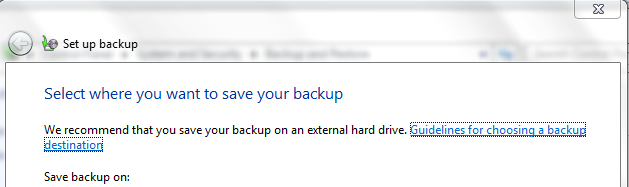
Admittedly, I could have used Windows 7's own backup and recovery system. If you're primarily a Windows user then I highly recommend you try it. If you have used Windows 7 Backup and Restore before, then you would be very comfortable with Lenovo OneKey Recovery. Both utilities create images of the whole Windows system, which can be restored using a recovery disk that you can create using the same application. In short, after creating a system image on an external HDD (like my clean install of Windows 7), you can either run the application and restore the whole system from there or you can boot to a recovery disk.


I've never actually had to reimage my own Windows 7 laptop. Although I'm primarily a Linux user, I will admit that Windows 7 (and Windows 8 for that matter) is a stable system and requires very little maintenance when used properly. However, the inconvenience of reinstalling applications in Windows is more telling than that of Linux - so having a system image which you can turn to for a quick overall restoration is handy.


Lenovo OneKey is designed for Windows and therefore NTFS and created an image on the NTFS-formatted 2TB Seagate HDD in less than half an hour. I'm pretty sure Windows 7 Backup and Restore would have done the same.

Use what works

Now, the success of Lenovo OneKey in this scenario is no dig against Clonezilla. Clonezilla is still my main imaging system especially since most of my machines run on Linux. However, this experience just proves that users should turn to software that does the job appropriate for their platform. 
 
Read More
Posted in Tech Today | No comments

Monday, 6 May 2013

Setting up an Access point with a China Telecom modem-router

Posted on 13:47 by Unknown
Category: Tech Today


China Telecom is one of the largest broadband providers in China and subscribing to their services is almost unavoidable in Shanghai. As an expatriate or student in Shanghai, you might find yourself having to set up a wireless access point for your apartment or flat during your stay. The steps involved in setting up a wireless access point is no different than setting up a wireless network on a Time Warner Cable Broadband service or AT&T. So if you already know how to do that then you can safely go about setting up your home network on your own without any help.

China Telecom CPE: 4-port broadband modem/router or Wi-Fi enabled modem router


I received a 4-port broadband modem/router when I subscribed more than a year ago but I've been informed by other expatriates and locals that some people either took advantage of a promo or just received a Wi-Fi enabled modem router on paying for their first year. If you want full control of your wireless network, I wholeheartedly recommend getting the modem/router and not paying extra for the Wi-Fi enabled modem router. Instead, bring along a cheap router from home that you can set up as an access point (even an older N router is more than enough to stream across a one-bedroom flat). If you decide to purchase a wireless router in China (they're dirt cheap), opt for a dependable D-Link or even a TP-Link model (Belkin and Netopia are not nearly as available).


If you're not the hands-on type then there's absolutely no problem with paying for the Wi-Fi enabled modem China Telecom router though I was told you get a whitebox with dodgy performance and a Chinese GUI. In most cases, they're nice enough to provide a WPA password that is all numbers and an easy to remember SSID (network name).

For my part, I was extremely happy I was handed a 4-port modem router because I wanted to configure the wireless network myself and stream data across my Linux boxes.

Setting up your Wi-Fi router


I brought along my old and largely unused 4-year old Linksys WRT120N (yeah, yeah I know I should have bought a D-Link). The first step is largely ignored by users who hate the OEM firmware or just avoid the hassle of going through the procedure. However, I highly recommend you update the firmware of your wireless router no matter where you are if you don't opt for an open-source firmware instead. The WRT120N had been acting up for years and thankfully the update corrected some flaws in its performance.


As mentioned previously, you can definitely fiddle around with the China Telecom router if you like and even convert it as a passthrough device and let your Wi-Fi modem router handle PPPoE and authentication. That said, I don't recommend it unless you're confident about the unmarked modem's stability and your own ability to explain everything in Chinese if you end up calling China Telecom for assistance (or worst, brick the darn thing).

In this scenario, we'll set up a basic access point without needing to touch the China Telecom CPE or use the provided account name and password. To set up a simple access point:

1. Update your wireless router's firmware.


2. Connect the wireless router to your Linux, Windows, or Mac OSX system using the Ethernet 1 port. Access the router GUI like you normally would. Enter the username and password. For the decrepit Linksys, the router GUI can be opened using a browser, the URL address 192.168.1.1, and the username and password admin (which everyone with a Linksys router should definitely change).

3. Disable DHCP - this allows the Linksys to leave all the hard work to the China Telecom modem-router.


4. Change the wireless router's IP address to an IP address within the subnet. To put it simply, replace the IP address of the wireless router's 192.168.1.1 to an IP address within the range assigned by the China Telecom router.

In my case, the China Telecom staff that set up my CPE limited my IP address from 192.168.1.5-192.168.1.15 (which you could change anytime) so I used the IP address 192.168.1.10 for the router IP address of the WRT120N. Incidentally, another reason why this is a good idea is because the China Telecom modem router's GUI address is also 192.168.1.1.

5. Assign an SSID and setup your wireless security.


6. Save your settings and power down your Wi-Fi router.

7. Disconnect the the ethernet cable from your laptop or PC.

8. Connect an ethernet cable from the China Telecom modem router to one of the ethernet ports on your wireless router. Avoid using the Internet/Web port.

9. Power on your Wi-Fi router.

To test your wireless access point, search for the SSID you created using your mobile device or PC. I tested and surfed the Internet using an iPad, iPod, openSUSE, Lubuntu, and Windows 7 system successfully. Once your Wi-Fi network is up and running you can start tweaking settings and setting up other security measures.

Contrary to popular belief, broadband in China is not slow. It's only slow for websites and domains that are filtered by their Great Firewall such as Google and American social networking websites. Their local sites, some of which are adequate replacements for Western ones, are actually pretty fast. Youku.com, for instance, streams videos and movies without any lag. All your efforts to tweak your network speed are wasted if what you're trying to access is just not acceptable to the Great Firewall. As for VPNs, that's another story.

Take note that due to Step 4, you should disable your laptop or PC's wireless connection first before attempting to connect via ethernet to reconfigure your wireless router.  Moreover, you would now need to type the router's new local IP address (in this example 192.168.1.10) to access the wireless router's GUI configuration. Finally, keep in mind that if you type in 192.168.1.1 in the browser address field you'll end up accessing the China Telecom modem router's GUI.

As a side note, your neighbors might have wireless signals that you can easily sniff using your Linux box, but I don't recommend attempting to latch on to their service for various reasons. Play fair and stay secure online.
Read More
Posted in Tech Today | No comments

Saturday, 4 May 2013

Adventures with PC-BSD 9.1 LXDE Part 1

Posted on 05:55 by Unknown
Category: Linux

Hardware disclaimer and FreeBSD background

I'm a Linux user through and through but I've toyed with setting up a FreeBSD desktop for years but never got around to it. As any pedantic geek would tell you, a computer user actually never uses an operating system but rather uses the applications installed on the OS. Running PC-BSD over a Linux distribution, however, does have its differences despite the relationship between FreeBSD and Linux. It helps to be a long-time supporter and user of Linux when running FreeBSD but there are plenty of differences, which I will endeavor to elaborate in this series of articles on PC-BSD 9.1.

My recent setup of FreeBSD wasn't ideal (there is currently an issue with the ports collection), so I had the option to install either PC-BSD or the lesser known GhostBSD. My sentimentality for Gnome 2 led me to GhostBSD but Xorg issues on boot from the GhostBSD LiveUSB I created forced me to PC-BSD instead.
I installed PC-BSD 9.1 on my dependable ASUS EEEPC 1000H netbook, which runs on a first generation Intel Atom N270 processor and 2GB of RAM. Many users would no doubt balk at such paltry hardware but the beloved netbook has survived years of extensive use while running Lubuntu, openSUSE, Fedora, and even Mandriva. I'm not a power user so my expectations of a working desktop are fairly low even in this day and age of tablets and smartphones.


PC-BSD 9.1 and LXDE

The installation process of PC-BSD is friendly and comparable to many Linux distributions though it takes away much from the text-based experience of FreeBSD. I intend to run the installation again on different hardware in the future since I felt it left very little impression on me as a user, which is actually a good thing for newbies. PC-BSD 9.1 provides several desktop environments so I opted for LXDE because it was somewhat more lightweight than other desktop environments and my personal preference for it. Moreover, I had already heard reviews from other users that PC-BSD and FreeBSD in general performed much slower than Linux and wanted to anticipate any issues.

LXDE is well known for being conservative in its application set, but PC-BSD's default set of utilities was sparse even by Linux standards. There are three things that were immediately noticeable:
  • There is no browser preinstalled. Although unusual, PC-BSD does make it easy to install Chromium using PC-BSD's software manager, AppCafe (more on AppCafe later).
  • There is no screenshot utility. This is perhaps not an issue for most users save for those who intend to write blog posts or tutorials. Again, AppCafe saves time by offering either KDE's excellent KSnapshot and text-based and uniquely named Scrot. Concerned with KDE libraries installed with KSnapshot, I installed Scrot while attempting to remove images of body parts from my mind. Taking screenshots from XTerm was inconvenient but tolerable.
  • There is no battery indicator. I was so engrossed with exploring PC-BSD, I forgot that I was running on the 1000H's prodigious battery. I worked for a couple of hours before the system suddenly blinked out. Unfortunately, AppCafe only provides very few options for monitoring battery. I installed the system monitor GKrell2, which to its credit is actually useful for the purpose of testing and reviewing PC-BSD.


Linux and LXDE users will recognize the excellent PCMANFM, XSane, LXTerminal, Leafpad, ePDF Viewer, eMacs, Vim, XScreenSaver, Openbox Configuration Manager, GDM Login Manager, and Adobe Flash Player in the LXPanel.

EEEPC1000H hardware support

PC-BSD includes a very simple Hardware Compatibility utility. To check for hardware compatibility in PC-BSD LXDE:
  1. Click the LX Menu.
  2. Click Preferences then PC-BSD Control Panel.
  3. Click Hardware Compatibility.


PC-BSD 9.1 unsurprisingly did not detect nor support the 1000H's notorious Ralink2860 wireless card. The support wiki of both FreeBSD and even GhostBSD noted the lack of availability of drivers for the Ralink card so I wasn't really surprised. When the 1000H first came out four years ago, it took awhile for Linux distributions such as Ubuntu and Fedora to provide support for the card and it took a well-designed openSUSE release to get the 1000H's wireless card to work optimally. My research online showed that some users have had success with beta drivers for the Ralink though I myself had no luck when I followed the tutorials online. For most users, this would be a deal breaker, but I intend to learn FreeBSD using the system more than anything else and Ethernet support was enough for that purpose.

PC-BSD LXDE does not always immediately detect or mount connected USB storage devices and SD cards. I must confess Windows, MacOSX, and Linux distributions spoiled me in this regard and was nonplussed when I had to right-click the Mount Tray on the LXPanel notification tray and click Rescan devices.The system inexplicably was also able to detect a SanDisk 8GB SD card but not a 512MB PQI SD card.


Sound and display worked fine though touchpad performance out of the box was dodgy compared to previously installed Linux distributions. Thankfully, PC-BSD had no such issues with my Microsoft Mobile Wireless Mouse 3500.


I'm hesitant about commenting on Bluetooth support for the 1000H. I enabled the Bluetooth card in the BIOS so I wouldn't have to switch it on manually as I used to do in earlier Linux releases that didn't support the FN keys. PC-BSD was able to detect the Bluetooth card and the installed Bluetooth Manager offered steps to set up the PIN and pair it with Bluetooth devices.

I tested the Bluetooth with my aged Nokia E63 and my iPod Touch. The iPod indicated it didn't support pairing with the device while PC-BSD displayed an error when attempting to connect with the Nokia E63. Again, perhaps a different Bluetooth utility is required as I did in Linux where BlueDevil performed much better than default Bluetooth utilities.


Overall hardware impression was all right despite Bluetooth issues and a nonexistent wireless support. It reminded me of my initial teething experience with early Linux distributions with inconsistent hardware support.

On the 1000H, PC-BSD boots up at a respectable 1:10.1, which is on par with a Windows 7 workstation and openSUSE 11.x KDE, which significantly loads slower than other Linux distributions at the time. Shutdown was a bit more disappointing however at 28 seconds, which is better than a poorly maintained Windows system but not exactly sterling compared to a standard install of Ubuntu or Fedora. With no additional tweaks, PC-BSD 9.1's RAM and CPU usage swung inconsistently to 90% and 23%. Applications definitely launch slower than I was used to but was generally usable on the netbook. The combination of the 1000H's humble components and PC-BSD LXDE isn't ideal for power users and speed fanatics however.


Continued in Adventures with PC-BSD 9.1 LXDE Part 2: Applications and AppCafe

Read More
Posted in Tech Today | No comments

Friday, 3 May 2013

openSUSE KDE basics: Launch Applications on Startup

Posted on 13:32 by Unknown
Category: openSUSE

Adding openSUSE applications or utilities in KDE is easy using the Startup and Shutdown windows.

1. Click the KDE menu (classic or Kickoff style menu) and click Configure Desktop.


2. Click Startup and Shutdown.


3. On the left panel, click Autostart. Click Add Program...


4. On the Choose Application window, select the application from the Known Application tree.


5. Click OK. The configuration file window will pop up for any additional customizations. Click OK again.
Read More
Posted in Linux - openSUSE | No comments

Quickfix: Cannot open InDesign file on a Mac or Error code 1 (MacOSX)

Posted on 13:08 by Unknown
Category: Techwriter

It can happen that you are provided a packaged set of InDesign files or an InDesign book on a burned DVD or even a USB external drive. On opening it on your Mac, you find that the .indd file or the book file is tagged as 'Read-only' or you get an Error code 1 indicating a corrupted/damaged file when attempting to save the InDesign project.


In most cases, there's absolutely nothing wrong with the InDesign files. It's more likely a Unix issue with permissions. You can fix this using the Terminal or if you have a Windows version of InDesign, open the InDesign file or book there and click File then Save As. Save the file using a different name. Once the Windows version of InDesign has stripped the permissions from the InDesign file or .indb you should be good to go. For InDesign books, you don't need to re-save the collection of .indd files separately. The .indb file should be enough.
Read More
Posted in Techwriter | No comments

Wednesday, 1 May 2013

The Digital Man: Sherlock (2010) Part 2

Posted on 03:52 by Unknown
Note: SPOILERS abound - please proceed at your own risk.
All screen captures from Sherlock (2010) DVD

Continued from The Digital Man: Sherlock (2011) Part 1

I remember reading a science article about how computers will change the way we think and I also remember a BBC news article detailing how people have become too dependent on the Internet for knowledge. A relative of mine in Jersey could no longer navigate the streets without his GPS and Garmin navigator. I was reviewing my higher math recently and the Introduction to the book I was using for exercises explained that people have grown so used to calculators on their smartphones and computers that they've forgotten to add simple numbers mentally. The series Sherlock (2010) , fictional as it is and occasionally over the top and farfetched, does present a practical use of today's technology.


I was a huge fan of the original Holmes stories as a youth, but was put off by the inconsistent and annoyingly inaccurate versions of the character that followed (the stupid-Holmes/smart-Watson version riles me to no end while the homosexual take is just irrelevant to the character). Holmes is one of the few fictional characters in history that is fleshed out so efficiently by the same author.  Despite Holmes being an anachronism in today's world, the arrogant sociopath Cumberbatch depicts in the show is what a contemporary version of the detective should be. Updating the detective along with arming him with the conveniences of today's mobile devices and the Internet make him an even more fascinating character.

Peter Parker (1960s-1980s), MacGyver (1980s), and Indiana Jones (1901-1960s) were from a bygone era and very difficult to bring to today's milieu. Indy is particularly difficult to reinterpret today due to the changes in the tools involved in archaelogy. MacGyver and Peter, heroes who used gumption, chemistry, and physics, would lose some of their appeal if they toted an Android tablet or iPhone (though the recent movie Amazing Spider-Man and series Spectacular Spider-Man proved successful in integrating technology with the web-spinning hero). James Bond, UK's other well-known export, has had several decades to evolve for the digital age but failed - technology is less of a tool for Bond than it is a useful toy (which by the way fits the war-weary and blunt nature of Daniel Craig's version).


What is realistic about the series Sherlock is he makes mistakes often - an update from the typically infallible Holmes in the Sir Arthur Conan Doyle stories. In the series premiere, Holmes makes the error of believing Watson had a brother not a sister (who had a girlfriend).  In the Hound episode, he assumed it was the coffee that was used as an instrument for administering the hallucinogenic and not the less mundane (but more practical) dispersal medium of the more's fog. It's extremely difficult to write mysteries and intelligent TV shows without making an error in today's age of IMDB.com and freely accessible science and historical archives.


I'm only slightly smarter than a sack of unpeeled potatoes (peeled potatoes have an edge) but I'm pretty sure there were dozens of mistakes and workarounds to the plot of plenty of the Sherlock episodes (American crime shows are notorious for this). Technology and the Internet should make crimes easier to solve (with GPS, cameras, smartphones and the Internet I'm surprised criminals even get away with any crime). However, let's face the truth - it also makes it supremely easier to commit a crime and remain invisible to an inept police force and government. Still, the efficient and very basic use of smartphones and laptops on the show make Holmes, despite his pseudo-superhuman powers, more relatable and human.


I'd probably be pissed off I met a pedantic know-it-all arse like Cumberbatch's Holmes in real life, but I'd definitely wish I would be as practical and as intelligent as he was in using today's technology and contributing to today's society.
Read More
Posted in Tech Today | No comments
Newer Posts Older Posts Home
Subscribe to: Posts (Atom)

Popular Posts

  • Drawing a Rounded Triangle in CorelDraw
    Category: Tech Writer If you need to draw a safety icon such as those found in user manuals or any icon which requires a rounde...
  • Linux on Film: The Amazing Spider-Man (2012) Part 1
    Ok, for dedicated fans of the latest Spider-Man movie (me included), Sony made use of this brilliant flick to advertise their Sony ...
  • Sony RAW (.ARW) support on openSUSE KDE
    Category: Linux Some advanced digital cameras and ILCs supports the RAW format, which many serious photographers prefer over JP...
  • Linux on Film: Antitrust (2001)
    *All screencaps from Antitrust (2001 ) Long-time Linux users are familiar with Antitrust (2001), which was strongly adverti...
  • What Applications Support PageMaker Files?
    Category: Tech Writer The discontinued Adobe PageMaker was a popular publishing application during a time when both comm...
  • Microsoft Product Placement in Arrow Season One Part 1
    Note: Unsolicited But Offered normally features Linux on film but in celebration of the ongoing season 2 of Arrow (w...
  • Cherrytree Note-taking for Linux
    I've been using the excellent KeepNote for more than three years now, having installed the utility on my Ubuntu, openS...
  • Tech Flashback: The Lethal Weapon series 1987 - 1998 Part 3
    Category: Tech Today Continued from Tech Flashback: The Lethal Weapon series 1987 - 1998 Part 2 In this series of articles, we continue our ...
  • CorelDRAW X5: Adding Barcodes and QR Codes to Business cards Part 2
    QR Codes and QR Code Services Due to the popularity of QR Apps that can be installed on smartphones and iOS devices, QR codes are also becom...
  • Linux on Film: The Amazing Spider-Man (2012) Part 2
    Piezoelectric technology and microcontroller From a plot perspective, Peter probably made use of existing equipment like th...

Categories

  • Linux
  • Linux - Mandriva
  • Linux - openSUSE
  • Tech Today
  • Techwriter
  • Travel Logs

Blog Archive

  • ▼  2013 (229)
    • ▼  November (19)
      • Smartphones on a Plane? Give me Snakes Instead
      • EVA Expo in Shanghai, November 2013
      • Knoppix LiveUSB Basics: Bluetooth and Blueman Part 2
      • Knoppix LiveUSB Basics: Bluetooth and Blueman Part 1
      • Winamp Stories
      • WD TV Live and Linux Overview Part 2
      • WD TV Live and Linux Overview Part 1
      • Look back: A Few Notes before openSUSE 13.1
      • Creating a Clonezilla image and Samba Part 3
      • Creating a Clonezilla image and Samba Part 2
      • Creating a Clonezilla image and Samba Part 1
      • EEEPC701 + Knoppix 7.2 + Focuswriter = Dedicated W...
      • Not Really a Slax Linux Review
      • OneNote for iPad/iPod Password Change
      • The EEEPC701 and Linux today Part 2: Finding the r...
      • The EEEPC701 and Linux today Part 1: 6 years later
      • Quick Fix: Unetbootin Bootable LiveUSB fails
      • Microsoft Product Placement in Arrow Season One Pa...
      • Use the Toshiba NB520 as powered speakers for your...
    • ►  October (21)
    • ►  September (20)
    • ►  August (23)
    • ►  July (23)
    • ►  June (21)
    • ►  May (24)
    • ►  April (22)
    • ►  March (19)
    • ►  February (16)
    • ►  January (21)
  • ►  2012 (261)
    • ►  December (28)
    • ►  November (22)
    • ►  October (28)
    • ►  September (20)
    • ►  August (28)
    • ►  July (23)
    • ►  June (21)
    • ►  May (15)
    • ►  April (26)
    • ►  March (9)
    • ►  February (11)
    • ►  January (30)
  • ►  2011 (10)
    • ►  December (10)
Powered by Blogger.

About Me

Unknown
View my complete profile